
Before you start
You need an overlay in OBS. Add a widget to OBS takes you from New overlay to a Browser Source; a leaderboard is one more layer on it.
A Leaderboard layer ranks one of three things:
- Loyalty points — your all-time loyalty leaderboard.
- Cheers & gifts — bits, gifted subs, or both, for the current stream or across the last 90 days.
- A number you keep — the top viewers by a per-viewer variable a flow keeps, such as a raid-boss damage counter.
It updates on its own as the numbers change — there is nothing to refresh, and no button to press.
1. Add a Leaderboard layer
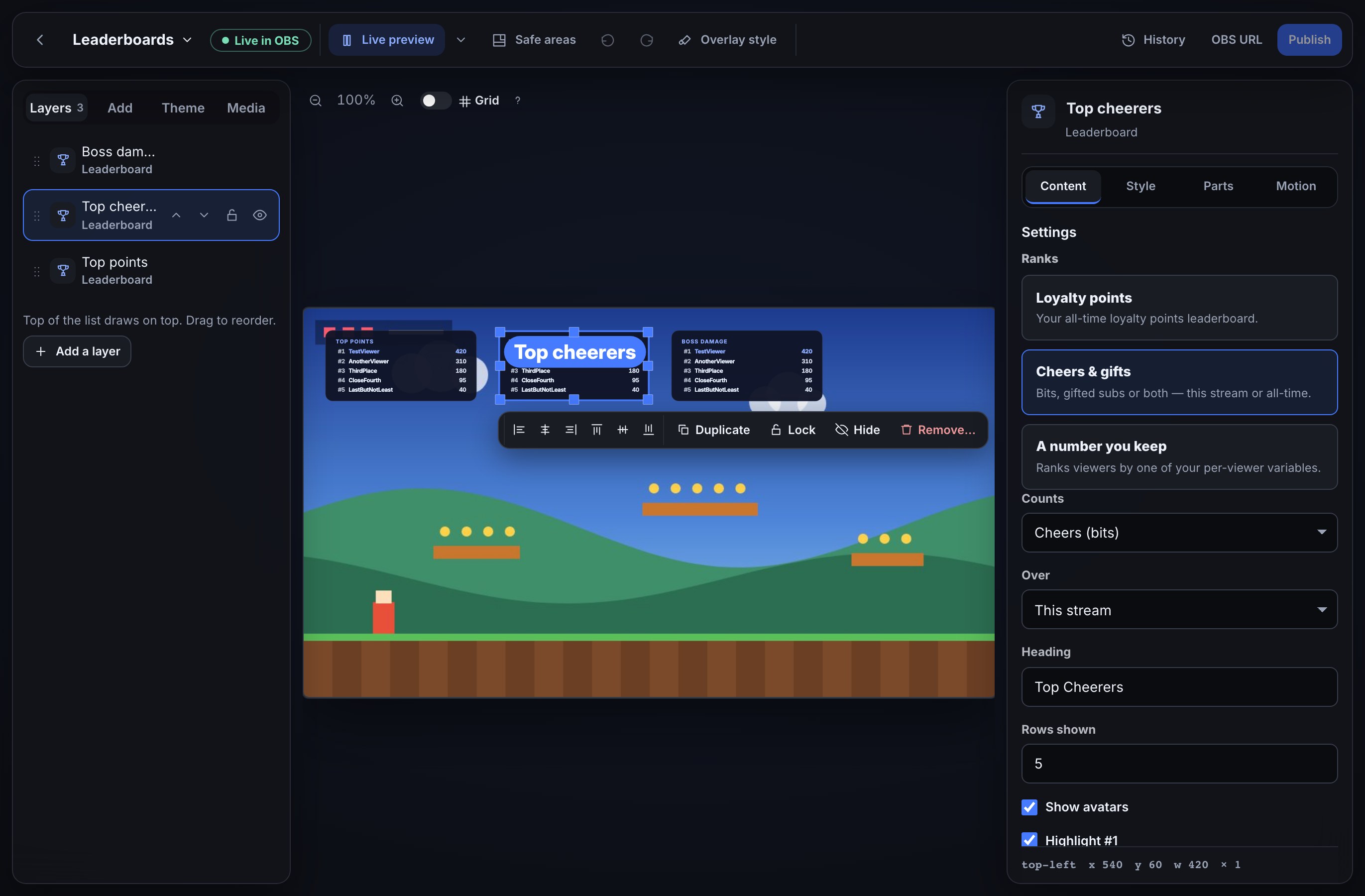
- Open Widgets and open the overlay you want it on, or press New overlay and choose one of the Leaderboard starting points under Start with: Top loyalty points, Top cheerers or Top gifters.
- On an existing overlay, choose Add on the left and drag the Leaderboard card from Goals & games onto the canvas, or click it to drop it in the middle.
- In Content → Settings, choose what it Ranks: Loyalty points (your all-time balances, nothing else to set), Cheers & gifts (asks what it Counts — Cheers (bits), Gifted subs, or Cheers + gifts — and Over which stretch: This stream or All-time (last 90 days)), or A number you keep (asks for the per-viewer Variable to rank).
- If you chose A number you keep and have not declared a variable yet, see Variables — it needs to be a number variable with scope per viewer, such as a boss-fight damage counter each viewer adds to.
- Give it a Heading, such as Top Supporters, choose how many Rows shown (3 to 10), and turn Show avatars and Highlight #1 on or off.
- Press Publish to put the layer on stream.
2. Try it before you go live
With the layer selected, open Simulate in the top bar and press Test leaderboard. It plays a short demo ranking — made-up names, never a real viewer — including a reshuffle, so you can see the #1 highlight move before anyone is watching.
The test plays on the canvas only, unless you tick Also play on the live overlay in OBS — then viewers see it too, for about 15 seconds. A few seconds after its last reshuffle your real ranking comes back on its own, so the made-up names never stay on stream. Nothing about the test reaches Twitch or changes any real data.
Style it with custom CSS
A Leaderboard layer draws a panel, a heading and a list of rows. To restyle them without CSS, use Parts — each of the names below is a part there, from Panel to Empty message (Style one part at a time). Your overlay’s custom CSS can style them by these names:
| Selector | What it is |
|---|---|
.w-leaderboard | The layer’s panel. |
.w-leaderboard-title | The heading. |
.w-leaderboard-row | One row. |
.w-leaderboard-row[data-rank="1"] | The highlighted #1 row, when Highlight #1 is on. |
.w-leaderboard-rank | A row’s place, such as #2. |
.w-leaderboard-avatar | A row’s avatar image, when Show avatars is on. |
.w-leaderboard-name | A row’s name. |
.w-leaderboard-value | A row’s number. |
.w-leaderboard-empty | The No one yet line, while nobody ranks. |
For example, .w-leaderboard-row[data-rank="1"] { transform: scale(1.05); } makes the top row stand out a little more, and .w-leaderboard-empty { visibility: hidden; } keeps the panel blank instead of saying No one yet. Style parts with custom CSS shows where to put it.
What you should see
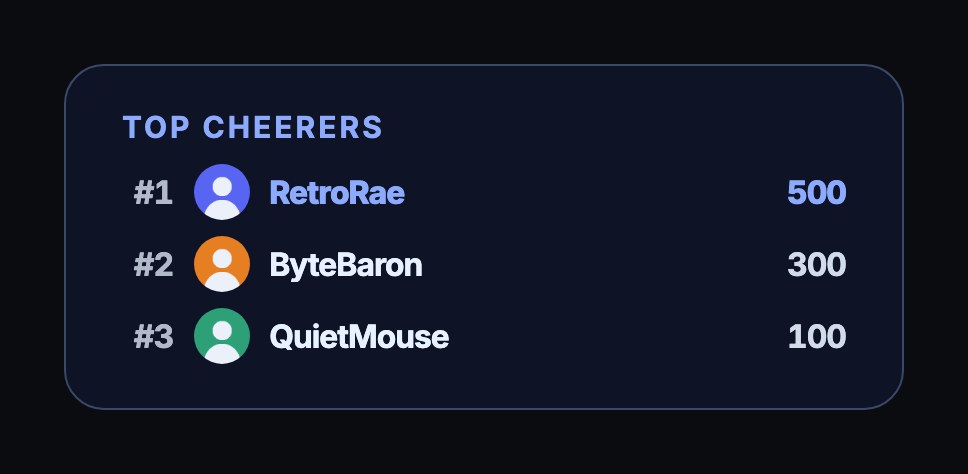
- Your top rows, most first, with the number each one ranks by — below zero too, if a variable can go there.
- The #1 row drawn differently, if Highlight #1 is on.
- An avatar beside each name, if Show avatars is on and Twitch has a picture for that account.
- The list updating on its own as cheers, gifts, points or the variable change — no refresh needed.
- No one yet under the heading while nobody ranks for what it counts.
If something looks wrong
- The layer says No one yet: nobody ranks yet for what it counts — no loyalty points, no cheers or gifts this stream, or nobody has a value for the chosen variable. It fills in as soon as someone does.
- This stream shows an old ranking after you go live again: it starts over empty at the start of each stream; give it a moment to catch the first cheer or gift.
- The made-up names from a test are still showing: they go away on their own a few seconds after the test’s last reshuffle. If they stay, refresh the Browser Source in OBS.
- A number you keep shows nothing: the variable it names may not exist, or may not be a number variable with scope per viewer. Check it under Variables.
- No avatars show: Twitch may not have a profile picture for that account, or Show avatars is off.
- The list looks the same for a while: give it a few seconds — it checks for changes automatically rather than the instant one happens. An All-time (last 90 days) board catches up within about half a minute.
Was this guide helpful?
Thanks. Your answer helps us decide which guides to improve.