
Control panels for your stream
Put your scoreboard, death counter and raffle button on one screen. Each button starts a flow you already have, and each control changes a variable, so you can run the stream from a second monitor, a phone or an OBS dock.
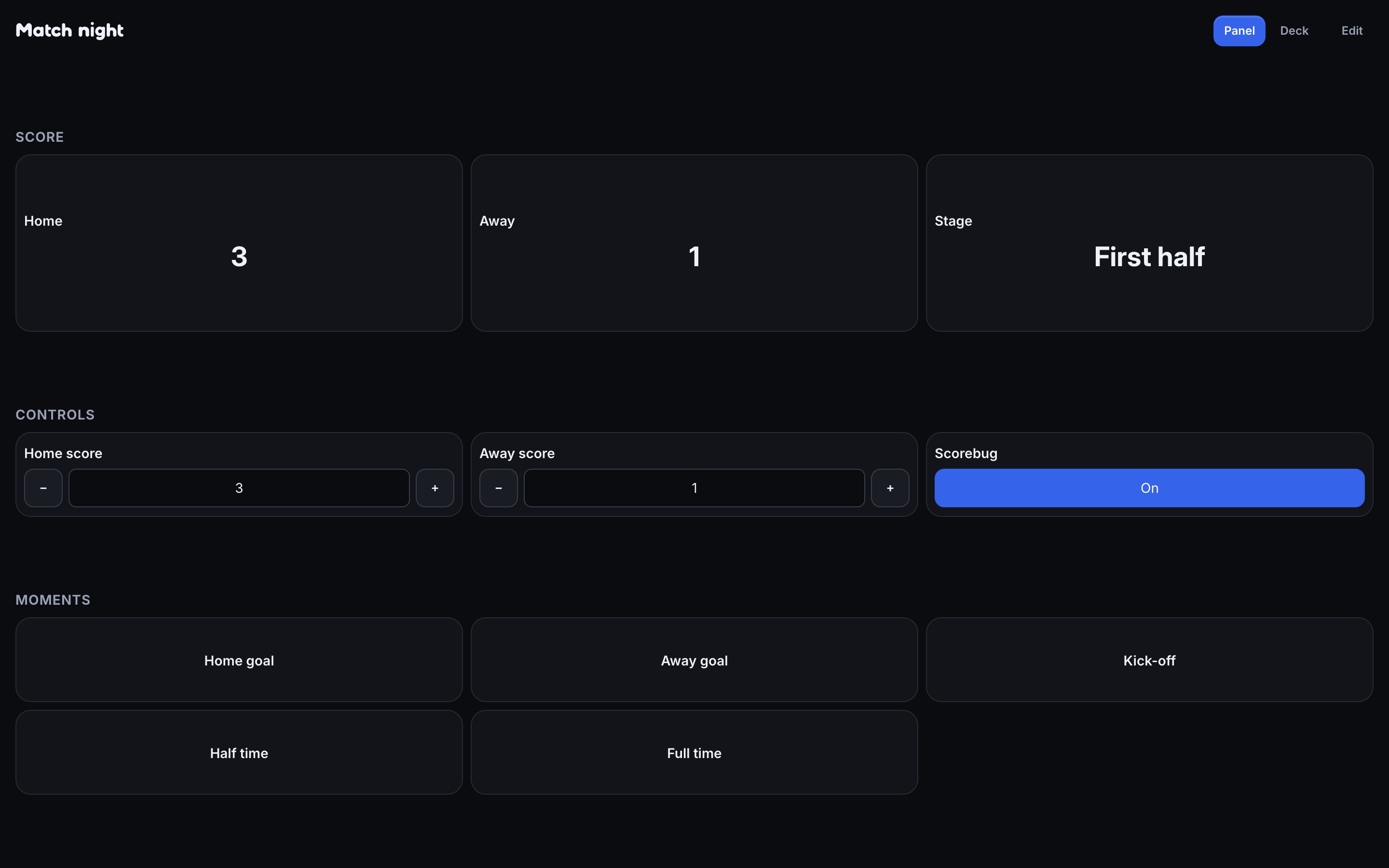
A screen of your own
A control panel is a screen of buttons and controls for your stream. Each button starts a flow, and each control changes a channel variable, so a scoreboard or a counter stays in step with your chat commands. You can keep up to 20 panels, with up to 64 tiles on each.
Buttons and variables
Add a button for any flow that starts from a Run button trigger, and a control for any variable you have declared. Change the button's label, image or inputs when a flow asks for them. The flows and variables are the ones you already use, so nothing is duplicated.
Use it on your phone or in OBS
Open a panel from the list to use it full screen. To use it on a phone or as an OBS dock without signing in there, create a secret link from the panel's share dialog. Anyone with the link can use that panel and no other, so treat it like a password and keep it off stream.
Let moderators help
Your moderators can use a panel you share with them, so they can run the next round while you stay on camera. What they can press is still limited by the flows behind each button.
Keep panels and flows together
Share a panel with its flows as a pack, and whoever installs it gets the buttons and the flows they start. The guide covers each step: Control panels.
Build a panel before your next stream.
Name it in Run, add one flow as a button, and open it on your phone with a secret link.