
What a backup email is for
If you ever can’t sign in with Twitch, a backup sign-in email gets you back into your dashboard. It’s optional, and only an address you’ve confirmed can sign you in. It doesn’t create a new account: it signs you in to the one you already have.
Before you start
- You need to be able to sign in with Twitch once, to add the address.
- Use an inbox you’ll still have if something happens to your Twitch account. It doesn’t have to be the address Twitch uses.
- Each address can be the backup for one account only.
Add a backup email
- In your dashboard, choose Account at the bottom of the sidebar, under your name.
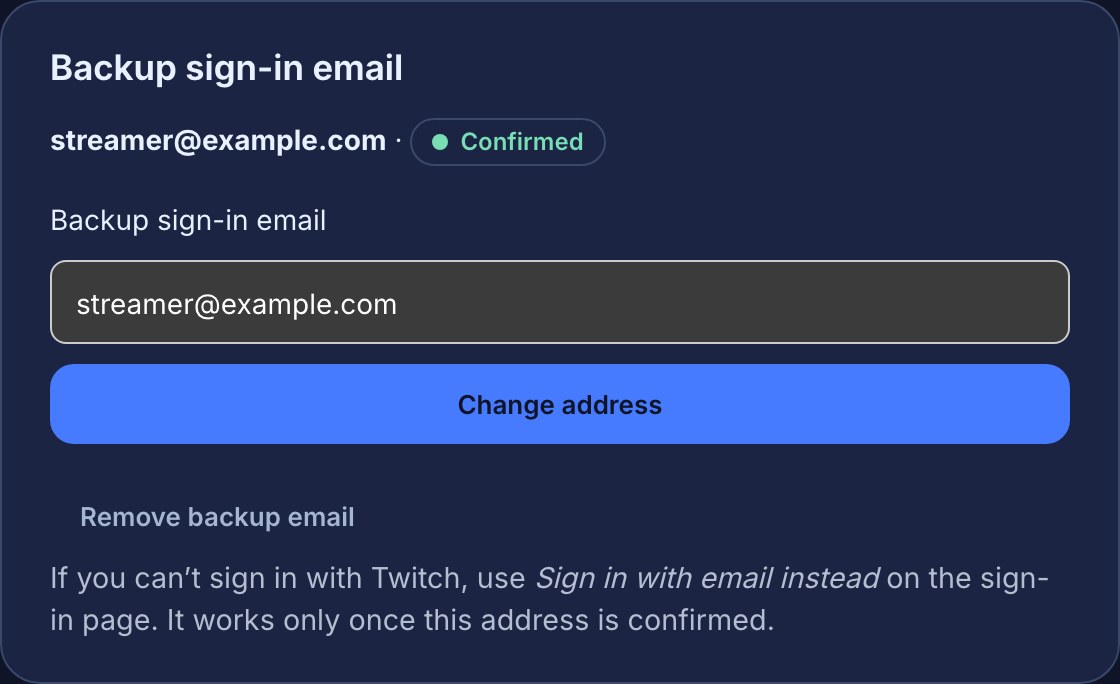
- Under Backup sign-in email, type the address. If Twitch shared your email when you signed in, the field may already hold it; change it if you like.
- Choose Save and send confirmation. The card now shows the address as Waiting for you to confirm.
- Open the email we send and choose Confirm this address, then Confirm on the page that opens. The link expires in 24 hours.
The page says Backup email confirmed, and Account now shows the address as Confirmed. From now on the save button reads Change address.
Sign in with email
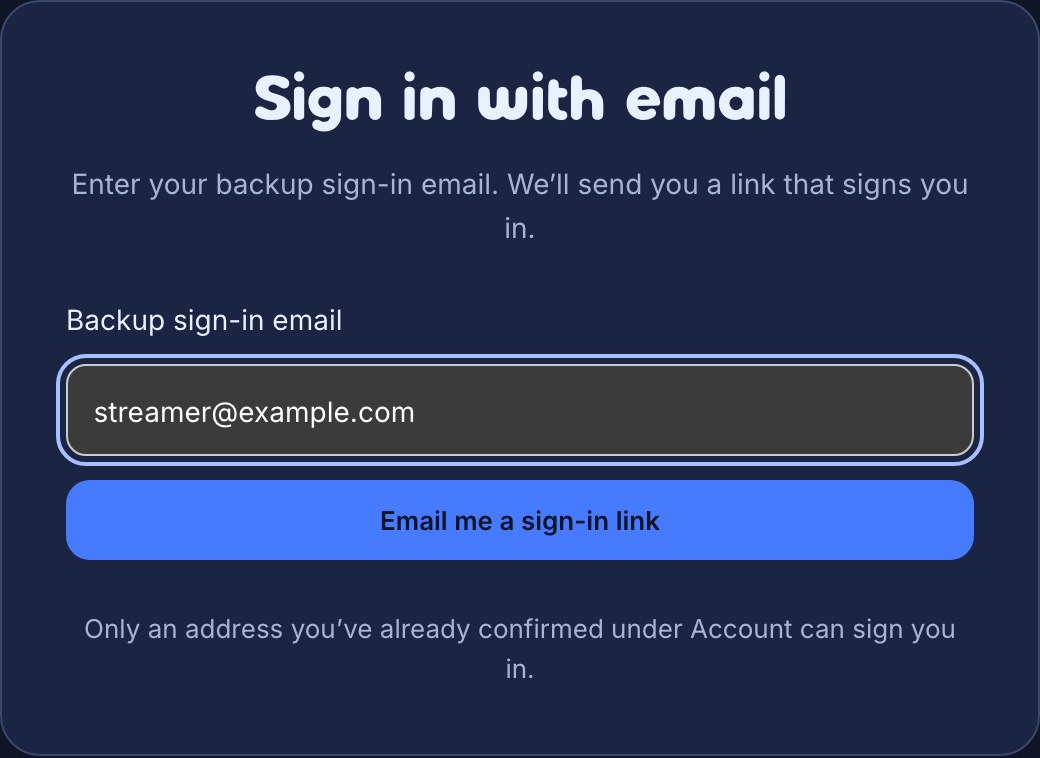
- On the sign-in page, choose Can’t use Twitch? Sign in with email instead.
- Enter your backup email and choose Email me a sign-in link. The next page says Check your inbox.
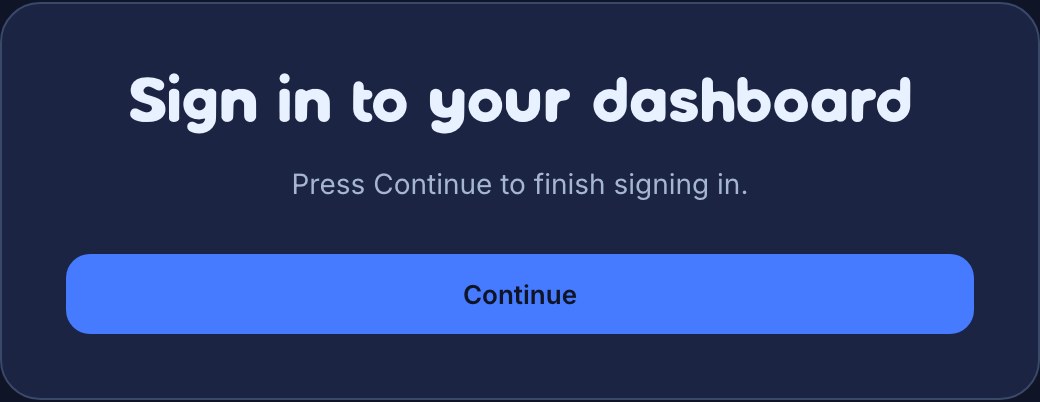
- Open the email and choose Sign in, then Continue on the page that opens.
You land on your dashboard, the same as a Twitch sign-in. Each link works once and expires in 15 minutes.
What works while Twitch is unavailable
Signing in by email opens your dashboard, so you can change flows, widgets and settings. It doesn’t reconnect Twitch. Anything that needs your Twitch connection — chat messages, alerts for Twitch events, channel point rewards — waits until that connection works again. When Twitch is back, open Links, review your Twitch status and follow a re-authorisation prompt if one is shown.
Change or remove the address
On Account, type a different address and choose Change address. We send a confirmation email to the new address, and the card shows Waiting to confirm with the new address under your current one. Your current address keeps signing you in until you choose Confirm this address in the new email. Once you do, the new address takes over, the old one stops working and gets a notice saying so, and any sign-in link sent to the old address stops working. To keep your current address instead, save it again.
To stop using a backup email, choose Remove backup email. A confirmed address gets a notice that it was removed. Either way, any sign-in link you already had stops working.
Choosing Unlink Twitch on your channel’s Links page also removes your channel’s backup sign-in email.
If something goes wrong
- No email arrived. Check your spam folder, wait a minute and ask again. For your safety you can request three sign-in links an hour for one address.
- “This link has expired or was already used.” Choose Send a new link. Links work once, for a short time, and asking for a new one replaces the old one.
- The link opened on another device. That’s fine: press Continue there, or ask for a new link on the device you want to use.
- “That address is already used for another account.” Each address can be the backup for one account. Use a different one.
- “You’ve changed this a few times already.” You can save a backup email five times an hour. Try again later.
- Account says “Backup sign-in isn’t available on your channel yet”, or the sign-in page has no email option. Backup sign-in may not be available on your channel yet. Sign in with Twitch as usual.
Was this guide helpful?
Thanks. Your answer helps us decide which guides to improve.